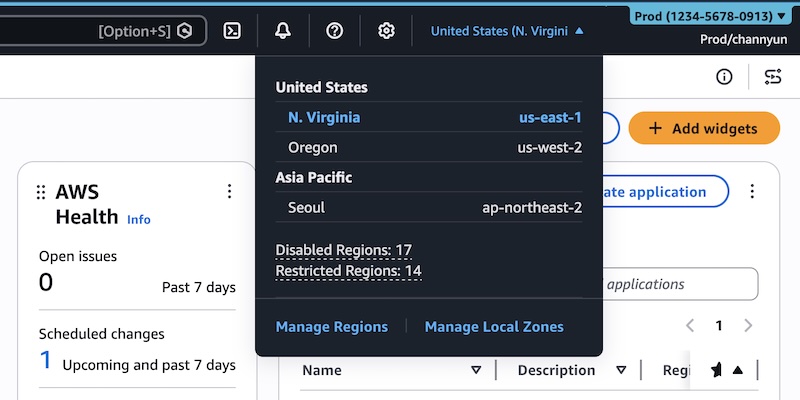
The changes build on AWS User Experience Customisation (UXC), introduced in August 2025 to let administrators adjust parts of the console UI, including assigning a colour to an AWS account for easier identification. With the latest update, AWS now lets you customize account colour, region visibility and service visibility together, aiming to cut cognitive load and reduce unnecessary clicks and scrolling.
Account colour remains a core part of the experience. After signing in to the AWS Management Console, users can select their account name in the navigation bar and then choose Account to open display settings. From there, they pick a preferred colour and apply it via Update. The chosen colour appears in the navigation bar, helping visually distinguish accounts.
AWS suggests using different colours to indicate an account’s purpose. For example, one colour could denote development, another test, and a more attention-grabbing colour for production. The idea is to give teams a quick visual cue to help prevent confusion between environments.
The new capabilities focus on making only relevant regions and services visible in the console. Instead of showing every AWS Region and the full list of services, administrators can limit what appears in the interface. According to AWS, this selective display is designed to help users focus better and work faster by reducing on-screen clutter.
To configure these options, users choose the gear icon in the navigation bar and then select See all user settings. Administrators will see a new Account settings tab in the unified settings. If no settings have been configured, all regions and services remain visible by default.
Under Visible Regions, admins can select Edit and choose between two options: show All available Regions or Select Regions and then build a custom list. After saving changes, the Region selector in the navigation bar will show only the chosen regions.
Service visibility works in a similar way. Administrators can search or browse services by category and select which ones to display. For instance, they can use the “Popular services” category to quickly pick commonly used tools. Once saved, only the selected services appear in the All services menu in the console navigation bar.
The search experience follows the same rules. When users type in the service search bar, they will only be able to choose from the set of services that have been marked as visible.
Console-only visibility and automation via CloudFormation
AWS is clear that these settings affect appearance only. Region and service visibility controls do not change actual access to AWS resources. They do not restrict access via the AWS Command Line Interface (AWS CLI), AWS SDKs, AWS APIs, or Amazon Q Developer. Instead, they are meant purely to streamline what appears in the graphical console.
For teams that manage their environments as code, AWS is also exposing these customization controls via new parameters that can be used programmatically. Two parameters — visibleServices and visibleRegions — allow organizations to manage console appearance through AWS CloudFormation.
AWS provides an example CloudFormation template using the AWS::UXC::AccountCustomization resource type. In that sample, administrators define:
AccountColor (for example, set to red)
VisibleServices (for example, a list including s3, ec2, and lambda)
VisibleRegions (for example, us-east-1 and us-west-2)
Once defined in a file such as account-customization.yaml, this template can be deployed using the AWS CLI with aws cloudformation deploy and a chosen stack name. After deployment, the console for that account reflects the specified colors, visible services, and visible regions.
AWS points users to the AWS User Experience Customization API Reference and the AWS CloudFormation template reference for deeper documentation on these capabilities and how to integrate them into existing automation workflows.
As with many console features, AWS is inviting feedback. Users can share their experience through the Feedback link at the bottom of the console, via the AWS re:Post forum for the AWS Management Console, or by contacting their AWS Support channels.
Paul Balo is the founder of TechBooky and a highly skilled wireless communications professional with a strong background in cloud computing, offering extensive experience in designing, implementing, and managing wireless communication systems.
We use cookies to ensure that we give you the best experience on our website. If you continue to use this site we will assume that you are happy with it.