• AI Search
  • Cryptocurrency
  • Earnings
  • Enterprise
  • About TechBooky
  • Submit Article
  • Advertise Here
  • Contact Us
TechBooky
  • African
  • AI
  • Metaverse
  • Gadgets
Generic selectors
Exact matches only
Search in title
Search in content
Post Type Selectors
Search in posts
Search in pages
  • African
  • AI
  • Metaverse
  • Gadgets
Generic selectors
Exact matches only
Search in title
Search in content
Post Type Selectors
Search in posts
Search in pages
TechBooky
Generic selectors
Exact matches only
Search in title
Search in content
Post Type Selectors
Search in posts
Search in pages
Home Artificial Intelligence

Google TV Adds AI-Generated Art Screensavers, Here’s How To Use Them

Akinola Ajibola by Akinola Ajibola
October 13, 2024
in Artificial Intelligence
Share on FacebookShare on Twitter

The new capabilities that were revealed for Google TV devices last week are being rolled out by Google. The integration of personalised artificial intelligence (AI) art screensavers is the most notable aspect of them. With the help of this function, users may create a one-of-a-kind artwork on their idle screen. Users may also create a screensaver by using their Google Photos photos. In addition, Google is installing a new house panel that will serve as the primary hub for smart homes.

Google TV now has a new help page that describes the new functionality. When a smart TV is kept idle for an extended period of time, screensavers start to show wallpapers rather than the home screen. Most often, they are generic stock photos. However, users now have a means to display original artwork in this area thanks to the new AI function.

A user can create a unique AI art screensaver in three different methods. Typing a query that describes the art users would want to view is the first step. Another method is to create AI art by selecting from the pre-made templates. Using the “Inspire Me” option is the third strategy. With this setting, users can store a random artwork created by the AI as a screensaver.

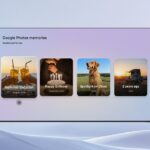
The user may also add their favourite photographs from Google Photos if they don’t like AI images. However, the user has to be signed into their Google account in order to utilize this feature. Notably, users must select one or more albums to display as their screensaver rather than selecting individual photos.

You may take the following actions to configure an AI art screensaver on your Google TV device:

  1. Go to Google TV home screen and select Settings.
  2. Go to System and select Ambient mode.
  3. From the list of screensavers, select Custom AI Art. Go to Create New…
  4. Choose between Describe your idea, Inspire me, and Suggested templates.
  5. After creating a piece of custom AI art, you can use the up and down button to scroll through its variations.
  6. Save the preferred images to the image library.
  7. You can add more prompts to generate more images. Once done, select Set all as screensaver.

You have three options for adding new wallpapers: choosing a specific art style and letting Google TV walk you through the rest of it; using ‘Inspire Me’ to generate something at random; or providing a descriptive prompt that tells Google TV what you want it to create, either by typing it in or by using the microphone on your remote.

The initial results are rather spectacular, and you can click Edit to make changes or Generate Again to generate a whole other image if you’re not happy with what Google TV has produced. Wallpapers may be stored in your gallery using the Save option, of course.

Related Posts:

  • Samsung-TVs-and-Displays-Samsung-TVs-Google-Photos_main1F
    Google Photos Now Supported on Samsung TVs
  • assets_task_01jryr2pwyfwsagc1sv1n2e5px_img_0
    Introducing Google Photos Integration for Gemini's…
  • Google-Messages-Remix-cover
    Google Photos Expands ‘Remix’ Feature to More Countries
  • gemini-createanimage
    Google Docs Now Creates Images Using Gemini AI
  • 247278_Google_TV_Streamer_4K_JTuohy_0013
    Google TV Tests Gemini For AI Powered News Briefs
  • Gmail_icon_(2020).svg
    Gmail adds Gemini for Calendar-based Searches
  • 5_Ways_Pixel_Studio.width-1200.format-webp
    Google Updates Pixel Studio with AI for Human Image Creation
  • Ask-Photos
    Google Photos Debut New Feature 'Ask Photos' Using AI

Discover more from TechBooky

Subscribe to get the latest posts sent to your email.

Tags: googlegoogle tv
Akinola Ajibola

Akinola Ajibola

BROWSE BY CATEGORIES

Receive top tech news directly in your inbox

subscription from
Loading

Freshly Squeezed

  • Microsoft Reveals First Xbox Game Pass Additions for Feb 2026 February 3, 2026
  • GoCab Raises $45m Seed Round After Hitting $17m ARR February 3, 2026
  • SpaceX Acquires xAI in $1.25T AI and Space Consolidation February 3, 2026
  • OpenAI Moves Beyond Nvidia Chips in AI Arms Race February 3, 2026
  • SpaceX Acquires xAI in Major Strategic Move February 2, 2026
  • UK Launches Fuel Finder API for Petrol Station Prices February 2, 2026
  • France Signals Possible VPN Restrictions Amid Under-15 Social Media Ban February 2, 2026
  • Samsung Galaxy Unpacked 2026: What to Expect From the Galaxy S26 February 2, 2026
  • OpenAI Launches Standalone Codex App for macOS February 2, 2026
  • Uber exits Tanzania after Years of Regulatory Tension February 2, 2026
  • SpaceX Proposes Launch of One Million Solar Data Center Satellites February 2, 2026
  • Microsoft Resolves Outlook Encryption Access Issue February 2, 2026

Browse Archives

February 2026
MTWTFSS
 1
2345678
9101112131415
16171819202122
232425262728 
« Jan    

Quick Links

  • About TechBooky
  • Advertise Here
  • Contact us
  • Submit Article
  • Privacy Policy
Generic selectors
Exact matches only
Search in title
Search in content
Post Type Selectors
Search in posts
Search in pages
  • African
  • Artificial Intelligence
  • Gadgets
  • Metaverse
  • Tips
  • AI Search
  • About TechBooky
  • Advertise Here
  • Submit Article
  • Contact us

© 2025 Designed By TechBooky Elite

Discover more from TechBooky

Subscribe now to keep reading and get access to the full archive.

Continue reading

We use cookies to ensure that we give you the best experience on our website. If you continue to use this site we will assume that you are happy with it.