Webcam issues are one of the common problems many Windows users face. The webcam problems can change depending on the circumstance. It might merely not work in certain applications, or it might not function at all.
You’ll have a difficult time at work if the webcam or microphone quit working for whatever reason. The major reason behind this issue can be your Camera Driver. Outdated or corrupted drivers can cause errors in the functioning of the webcam.
So, in this article, we are going to discuss some effective ways through which you can fix your webcam issue easily.
Quick and Easy Ways to Fix the Webcam
Here below are the methods to solve this problem on your Windows system. Read ahead and perform them systematically.
Check your camera
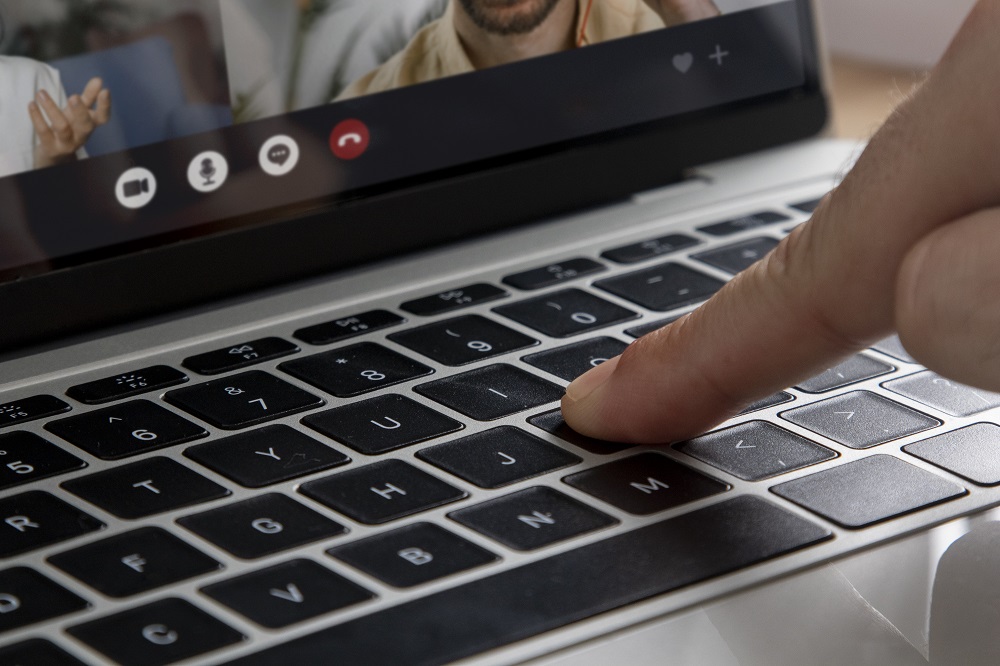
Some laptop keyboards contain modifier keys to activate and deactivate the webcam in this age of security and privacy. Some cameras, both internal and external, include a slider or cover that can completely obscure the image.
Additionally, completely unplug your camera from the computer or laptop. So, as a starting point, we recommend checking your keyboard’s hotkeys to ensure that none of them are deactivating the webcam.
We also recommend checking your web camera itself to ensure that the lid or slider is open if one is present.
Update the driver
Outdated drivers can be the main culprit behind this error. Hence, make sure to keep your drivers updated timely. To do so, follow the below steps.
Go to the Start menu on your desktop.
Type Device manager in the search bar and hit Enter button.
Select the first result from the search results.
A Device manager window will open up.
Scroll down through the list of options and choose the Imaging devices option.
Expand the option.
Choose your desired connected webcam device.
Check if it is enabled.
If not, then enable it.
After enabling, right-click on that option and select the Update driver option.
Now, hit the Search automatically for the updated driver software button.
Your system will automatically update and install the appropriate driver.
Now, restart your computer to apply the changes.
Roll back the driver update
Rolling back your driver will only restore the version that came before the current one, assuming it had previously been updated, if you’re still having trouble. Follow the below steps to perform this method.
Go to the Start menu on your desktop.
Type Device manager in the search bar and hit Enter button.
Select the first result from the search results.
A Device manager window will open up.
Scroll down through the list of options and choose the Imaging devices option.
Expand the option.
Choose your desired connected webcam device.
Check if it is enabled.
If not, then enable it.
After enabling, right-click on that option and select the Properties option.
Go to the Driver tab.
Select the Roll back driver option.
Confirm all the on-screen prompts and hit the OK button.
Now, restart your computer to apply the changes.
Reinstall the drivers
Drivers are neither pre-loaded nor automatically installed in Windows 7, which is an older operating system than Windows 10. You must thus install and download them on your own.
If you have a built-in computer webcam, then you can always visit the official website of the computer manufacturer, get the webcam driver, and then manually install it.
A similar holds true for the external USB webcam; you will very probably discover a driver for it on the webpage of the webcam’s manufacturer.
Check your antivirus configuration
Some antivirus software and third-party security programs don’t just scan your computer for malware; they also take care of granting your software’s requests for hardware access.
To put it another way, some or even all of your applications may not be able to use your webcam because of your antivirus.
As a result, we advise that you investigate its setup. If the webcam functions normally after you temporarily disable the antivirus, it is obvious that the antivirus is the cause of the issue, and you need to review the privacy area in it.
Run the troubleshooter
Every version of Windows comes with a troubleshooter, and while they don’t always resolve the most serious difficulties, they can typically handle the more routine problems you can run into with your associated hardware.
Follow the below steps to perform this method.
Go to the Start menu on your desktop.
Type Control Panel in the search bar and hit Enter button.
Select the first result from the search results.
A Control Panel window will open up.
Select the Troubleshooting bar.
Scroll down through the list and choose the Hardware and Sound option.
Hit the Next button.
Wait for the computer to identify the issue before checking for hardware alterations.
In order to enable automatic driver installation on your computer, click the View and Change Settings option if the automatic updates are currently disabled.
Choose the Yes do this automatically option.
Now, hit the save your changes option.
Come back to the last window and again hit the Next button.
The troubleshooting tool will look for issues and automatically fix them. You will then get a list of the issues that were identified and addressed.
After this step, the troubleshooter won’t really be useful, so close it. Check to determine if the webcam is working.
Conclusion
So, that’s it! This was all about how you can fix your laptop webcam on Windows 7 system. This is a very common yet very irritating problem users face. We hope this article helped you in solving this problem easily.
We use cookies to ensure that we give you the best experience on our website. If you continue to use this site we will assume that you are happy with it.