If you are someone who is scared after the Facebook data leak scandal which leaked 50 million profiles without the consent of the owner by the company Cambridge Analytica then you are not alone. Turns out our private messages on Facebook are not really private and anyone can hack into it and use it for malicious purposes. When it comes to privacy on Facebook we do not have much say into it but that doesn’t mean we can’t do anything about it. Most of us did not know that we can actually encrypt our Facebook messages and prevent Facebook from storing our personal conversations by just changing a few settings. It is important to protect your privacy online especially on a platform like Facebook which is so popular and is used by more than one billion people.
Now apps like WhatsApp and telegram facilitate an end to end conversation encryption but Facebook doesn’t do that on its own. This way a hacker can easily tamper your messages as they are sent and received as plain text. Read along to know how to keep your Facebook messages private and secure.
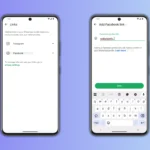
Just open your messenger app and click on your profile picture.
Now go to secret conversations option and enable it.
Get back to the main screen and click on the message icon.
You will see a lock icon on the right side of the search bar, click on it and that’s it.
This will ensure you have an encrypted conversation from now on. Although make sure the person you are texting to also does the same to ensure the security of your messages.
For iOS Messenger app users:
Open your messenger app, and then click on your profile photo.
Enable your secret conversations option and then come back to the main screen.
Click on the pencil symbol which is present on the top right corner of the messenger.
Just tap on the ‘Secret’ that is written on the right side of the messenger screen.
You can now send encrypted messages to anyone as long as they also have enabled the secret conversations option.
Along with this, you can even set time to make sure for how long you can keep the messages that mean after the time that you have set, messages from both the devices will be deleted. This is a great feature if you want to keep your conversations super secretive and private that after a certain amount of time even you or the other person can’t see them.
In general, Facebook keeps your messages stored for about 90 days after which there is no way you can retrieve deleted Facebook chats. But if you want to recover deleted Facebook messages that have been exchanged before that, then it is possible.
Another way to keep your Facebook messages private
Log into your account and go to your setting.
Click on ‘Your Facebook information’ from general account settings.
Now you can click on the ‘Download your information’ button.
Here you will be able to see all your data and you can tick the messages button which is present along with other data like photos, comments, stories, etc and click on the ‘Create the file’.
After creating the file, you can retrieve your deleted messages by clicking on ‘Download’.
Method to recover deleted Facebook messages involves your PC
You need to connect your phone to your system via a USB cable wire and open your device.
Now go to your SD card or internal storage and then open the folder ‘Android’ which will lead to ‘data’ and in it find ‘facebook.orca’ folder.
In this folder you will find ‘cache’ and clicking on it will lead to ‘fb_temp’. Here you can find your Facebook messages along with the backups.
You can start retrieving your deleted Facebook messages on the Facebook messenger from the PC.
If these don’t work, you can take help from third-party apps like Stellar data recovery that can help you retrieve your deleted Facebook messages. You can recover all your lost data like photos, videos, contacts along with your messages. This tool is available for both Android as well as iPhone users.
Image Source- PC Mag
You just have to connect your device to your PC and download the software on your system.
The data recovery tool will scan all your deleted or lost messages after you launch the software.
You can preview your photos, videos, and messages with just one click and select the data you want to recover.
After selecting, you can export the files to recover data which will be saved in the PDF format.
This is a great software if you do not want to go through the steps of recovery from Facebook and just want easy to use the process to retrieve your lost messages without any hassle.
We have mentioned above how to recover deleted Facebook messages through simple steps. If you have any questions or suggestions, feel free to mention them in the comments section below.
We use cookies to ensure that we give you the best experience on our website. If you continue to use this site we will assume that you are happy with it.