• Archives
  • Cryptocurrency
  • Earnings
  • Enterprise
  • About TechBooky
  • Submit Article
  • Advertise Here
  • Contact Us
TechBooky
  • African
  • AI
  • Metaverse
  • Gadgets
Generic selectors
Exact matches only
Search in title
Search in content
Post Type Selectors
Search in posts
Search in pages
  • African
  • AI
  • Metaverse
  • Gadgets
Generic selectors
Exact matches only
Search in title
Search in content
Post Type Selectors
Search in posts
Search in pages
TechBooky
Generic selectors
Exact matches only
Search in title
Search in content
Post Type Selectors
Search in posts
Search in pages
Home Tips

Tip: Here’s How To Lock Folder In Windows 10

Contributor by Contributor
May 14, 2020
in Tips
Share on FacebookShare on Twitter

Whether you’re a desktop user or a laptop user, there is no doubt about the fact that almost every individual wants to keep something private. Whatever it is your financial details, some important office docs, or any other personal file that you don’t want to share, we all deserve some privacy. So, let’s delve into how to lock folder/files in Windows 10 so that we can keep them away from prying eyes.

Locking a folder doesn’t require you to learn a lot of stuff. All you need to learn are some basic tips and tricks and you can easily lock any folder in Windows 10. You can create a secret folder that will stay password protected and only you will be able to open it. That folder is going to be your secret Pandora’s box. Sounds fun, doesn’t it? Let us get on with the steps now.

Steps to Lock Folder in Windows 10 – How to Password Protect a Folder

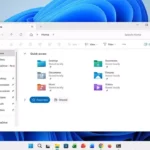
  1. The first step is to the right-click within the folder where the files are located. Those files are something that you want to lock or hide.

  1. The next step is to click on “New” present in the contextual menu. Then you need to click on the “Text Document”.

  1. Then hit on Enter. It doesn’t really matter what is the name of the file, you can delete it if you want later on once you have created the lockable folder.

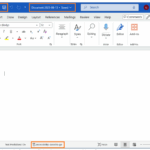
  1. After that, double click on the text file and open it. Now, you have to copy and paste the following text to your new document.

“cls

@ECHO OFF

title Folder Locker

if EXIST “Control Panel.{21EC2020-3AEA-1069-A2DD-08002B30309D}” goto UNLOCK

if NOT EXIST Locker goto MDLOCKER

:CONFIRM

echo Are you sure u want to Lock the folder(Y/N)

set/p “cho=>”

if %cho%==Y goto LOCK

if %cho%==y goto LOCK

if %cho%==n goto END

if %cho%==N goto END

echo Invalid choice.

goto CONFIRM

:LOCK

ren Locker “Control Panel.{21EC2020-3AEA-1069-A2DD-08002B30309D}”

attrib +h +s “Control Panel.{21EC2020-3AEA-1069-A2DD-08002B30309D}”

echo Folder locked

goto End

:UNLOCK

echo Enter password to Unlock folder

set/p “pass=>”

if NOT %pass%==Your-Password-Here goto FAIL

attrib -h -s “Control Panel.{21EC2020-3AEA-1069-A2DD-08002B30309D}”

ren “Control Panel.{21EC2020-3AEA-1069-A2DD-08002B30309D}” Locker

echo Folder Unlocked successfully

goto End

:FAIL

echo Invalid password

goto end

:MDLOCKER

md Locker

echo Locker created successfully

goto End

:End”

  1. In the next step, you have to find where it says “Your-Password-Here” within the document. Once you have found that out, you need to replace “Your-Password-Here” with the particular password with which you want to lock the folder.                                                                                                                                                                                                                 
  2. Now, you need to click on “File” and then “Save As”.

  1. A window will open and you have to select the “Text Documents” menu bar which is located next to “save as type:”.

  1. Here, you have to select “All files” and need to change the File name into “bat”. Next, you have to click on “Save”. This creates a Windows Batch File.                                                                                                                                                                                                                                                                                                               
  2. Once that is done, you have to double click on the FolderLocker

  1. A new “Locker” folder is now generated! Now you can fill the Locker folder with anything and everything that you want to keep hidden.

  1. Now you can fill this new “Locker” folder with all the files and documents that you want to protect.

  1. Now is the time that we actually lock this folder. Open the FolderLocker file batch file that we created earlier.             
  2. A DOS screen will come up. Here you have to type “Y” on the screen and then click on Enter.                                             
  3. Amazingly, the Folder Locker window will disappear along with the “Locker” folder with all its contents as well. That’s it, your secrets are safe.
  4. Now, to unlock the folder, you need to double click on the FolderLocker batch file and then open it.                               
  5. Enter the password that you set earlier and then hit enter. That’s it, your Pandora’s box is back again.
  6. You can now open the hidden files and then lock them up again. Then you have to repeat steps 11, 12, 13 to lock back the folder again.


Conclusion

All that being said and done, let us share a final note with you. While starting with the Folder Locker feature of Windows 10, it is better to start with such a file that you can afford to lose. Just in case the method doesn’t work out for you or in case you miss out a step. Thus, to be safe it is better to use an unimportant file. Also, you can keep a backup of the file that you want to lock.


Author Name: Ajit Yadav
Email: windowsclassroom@gmail.com

Related Posts:

  • skynews-whatsapp-phone-messaging_6156083
    WhatsApp Will Let Users Lock & Hide Every Intimate…
  • skynews-whatsapp-phone-messaging_6156083
    WhatsApp Introduces Chat Lock To Lock & Hide Chat Threads
  • File-Explorer-dark-mode-dialogs-for-Delete-Folder-1
    KB5070311 Update Resolves File Explorer and Search Bugs
  • 1604217-microsoft
    Windows 11 Gets Faster, Cleaner File Explorer in New Update
  • get-latest-updates-toggle
    Ads Could Be Coming To Windows 11 Shortly
  • Screenshot 2023-01-30 at 14.03.31
    Microsoft to Discontinue Remote Desktop Service
  • How-to-Share-Files-from-Google-Drive
    Google Drive Adds Privacy Screen for Android
  • word doc save
    Microsoft Word Now Saves New Doc Automatically To Cloud

Discover more from TechBooky

Subscribe to get the latest posts sent to your email.

Tags: folderhow totipswindows 10windows 10 folder lock
Contributor

Contributor

Posts by contributors. You can send in a post to be reviewed and published to info@techbooky.com

BROWSE BY CATEGORIES

Receive top tech news directly in your inbox

subscription from
Loading

Freshly Squeezed

  • Amazon to Invest $35B in India by 2030 for Jobs & AI Growth December 11, 2025
  • SpaceX May Launch Its Big IPO Next Year With a $1tr Valuation December 11, 2025
  • GPT-5.2 Debuts as OpenAI Answers “Code Red” Challenge December 11, 2025
  • Netflix Plans Heavy Borrowing to Fund Warner Bros Deal December 11, 2025
  • OpenAI Resolves Brief ChatGPT Outage on Android December 11, 2025
  • State AGs Urge AI Giants to Address “Delusional” Responses December 11, 2025
  • Google Launches Managed Remote MCP Servers for Cloud December 11, 2025
  • Reddit Runs Verification Tests December 11, 2025
  • Meta Rolls Out New Algorithm Controls on Instagram December 11, 2025
  • ChatGPT Becomes Most-Downloaded U.S. App of 2025 December 11, 2025
  • Reports: Microsoft Retreats on AI Goals Amid Weak Copilot Use December 11, 2025
  • Disney Invests $1B in OpenAI, Licenses Characters for Sora December 11, 2025

Browse Archives

December 2025
MTWTFSS
1234567
891011121314
15161718192021
22232425262728
293031 
« Nov    

Quick Links

  • About TechBooky
  • Advertise Here
  • Contact us
  • Submit Article
  • Privacy Policy
Generic selectors
Exact matches only
Search in title
Search in content
Post Type Selectors
Search in posts
Search in pages
  • African
  • Artificial Intelligence
  • Gadgets
  • Metaverse
  • Tips
  • About TechBooky
  • Advertise Here
  • Submit Article
  • Contact us

© 2025 Designed By TechBooky Elite

Discover more from TechBooky

Subscribe now to keep reading and get access to the full archive.

Continue reading

We use cookies to ensure that we give you the best experience on our website. If you continue to use this site we will assume that you are happy with it.