3. 5G Connectivity (Using 5G When You Don’t Need It)
The rollout of 5G networks brought faster download speeds – and another hidden battery drain. Phones like the iPhone 15 and Galaxy S24 default to 5G if available, but that 5G modem can chew through battery faster than older 4G LTE, especially in areas with poor 5G coverage. A benchmark test by Tom’s Guide found the iPhone 12’s battery drained about 20% faster on 5G than on 4G during continuous web surfing (5G Drains iPhone 12 Battery 20% Faster Than 4G in Benchmark ). In that test, the iPhone 12 lasted only 8 hours 25 minutes on 5G, but achieved 10 hours 23 minutes on 4G (5G Drains iPhone 12 Battery 20% Faster Than 4G in Benchmark ). Apple was concerned enough that they introduced a “Smart Data Mode” to auto-switch to 4G when 5G isn’t needed, to preserve battery. The bottom line: if you’re not actively benefiting from 5G speeds (like just reading emails or if 5G signal is weak), keeping the phone locked on 5G can needlessly drain your battery.
Why it drains battery: 5G radios use more power, in part due to handling higher bandwidth and potentially needing to connect to more network bands. In low-signal areas, the phone might constantly search and hand-off between 4G/5G, which taxes the modem and CPU. Also, current 5G networks (especially early sub-6 GHz and mmWave) can prevent the phone from entering deep sleep as frequently, and the battery drain is noticeable during active use (as seen in the ~2 hour difference in web browsing tests (5G Drains iPhone 12 Battery 20% Faster Than 4G in Benchmark ).
How to adjust network settings:
On iPhone (12, 13, 14, 15 series): Go to Settings > Cellular > Cellular Data Options > Voice & Data. You’ll see options like 5G On, 5G Auto, and LTE. For battery savings, choose 5G Auto (which lets the iPhone drop to 4G when 5G isn’t providing a benefit) or even LTE only when you don’t need 5G at all. This prevents the phone from constantly using the power-hungry 5G network.
On Android: The setting may be under Settings > Network & Internet > Mobile network > Preferred network type. You can select LTE/4G as the preferred network or turn off 5G. On Samsung Galaxy phones, for instance, you might go to Settings > Connections > Mobile Networks > Network mode and pick “LTE/3G/2G (Auto)” instead of “5G/LTE/3G/2G”. Some Android phones also have a quick toggle in the notification panel for 5G.
If you’re in an area with very poor cellular signal (of any kind) and don’t need to stay connected, consider turning on Airplane Mode temporarily. A phone struggling to find a signal will drain battery rapidly as it boosts the radio to search for service.
You don’t have to abandon 5G entirely – just be strategic. When you need blazing speeds for a download, use it. When you’re doing routine tasks or in a low-signal zone, switching to 4G can significantly increase your phone’s battery life while still providing adequate connectivity.
4. Background App Refresh and Auto-Sync (Hidden Background Activity)
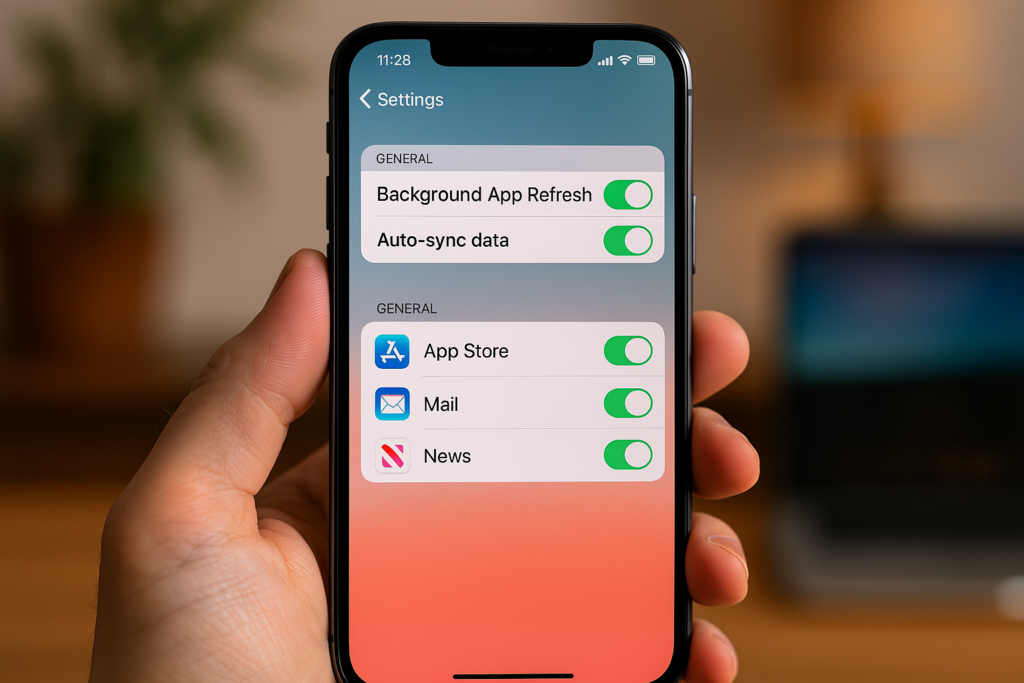
Many apps quietly run in the background to fetch updates – a feature known as Background App Refresh on iOS and generally as background data sync on Android. While useful (it lets apps update content even when you’re not actively using them), this constant background activity can significantly drain your battery if too many apps have free rein. Tech expert Dylan Kaplan explains that with Background App Refresh enabled, an app “in the suspended state will still check updates at consistent intervals,” consuming battery charge even when you’re not actively using that app. In other words, your email, social media, news, and other apps might be waking up your phone periodically to grab new data – and all those moments add up. No wonder Apple’s Low Power Mode automatically pauses background refresh to save power.
Why it drains battery: Every time an app wakes up in the background, it not only uses CPU cycles but often triggers network usage (Wi-Fi or cellular) to fetch data. This prevents your phone from staying in a low-power idle state. Constant background checks can also keep parts of the system from sleeping, leading to faster battery drain over hours. If dozens of apps are refreshing, the impact multiplies. For instance, Kaplan notes that turning off this setting “drastically improve[s] the battery life” of an iPhone because the phone will only update those apps when you actually open them.
How to tame background activity:
On iPhone: Open Settings > General > Background App Refresh. You can turn it off entirely or selectively disable it for apps that don’t need to constantly update. For a surgical approach, leave essential apps (e.g. messaging or navigation) enabled and switch others to off. (For example, do you need your news app refreshing when you’re not looking at it? Probably not.) Additionally, check Settings > Mail > Accounts > Fetch New Data. If “Push” is on for email, your iPhone maintains a constant connection to get new emails instantly, which can drain battery. Consider toggling Push off and using Fetch (e.g. every 15 or 30 minutes) or manual refresh for less critical email accounts. This way, the phone isn’t working nonstop to deliver emails the second they arrive.
On Android: Android phones automatically sync data for services like Gmail, contacts, cloud backups, etc. You can turn off global auto-sync if needed: in Settings > Accounts (or Passwords & Accounts), look for a toggle like “Automatically sync app data” and turn it off when you want to maximize battery . You can also manage background usage per app. Under Settings > Battery (or Apps > Battery usage), find apps that are consuming a lot of power in the background. For each, you might have options like “Restrict background activity” or “Put app to sleep” (on Samsung). Use these on apps that don’t need to run constantly. Android 13+ also has Adaptive Battery, which learns your usage patterns and limits background power drain from infrequent apps – ensure this is enabled under Settings > Battery > Adaptive Battery for automatic help.
By limiting background refresh and auto-sync, your phone can spend more time truly idle (in “deep sleep” mode), stretching out standby times. You might notice notifications or updates arrive a bit slower for the disabled apps, but that’s a small price for not having to reach for the charger as often. This tip alone can yield hours of extra battery life over the course of a day.
Paul Balo is the founder of TechBooky and a highly skilled wireless communications professional with a strong background in cloud computing, offering extensive experience in designing, implementing, and managing wireless communication systems.
We use cookies to ensure that we give you the best experience on our website. If you continue to use this site we will assume that you are happy with it.