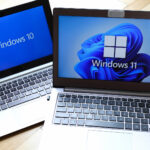
If you have been a Windows 10 user for quite some time. Then you are probably used to the regular old operating system’s functionality.
But today, I’ve got not one but seven awesome keyboard hacks which you can implement in your regular use. And no doubt these keyboard hacks will have your life a lot easier.
So without a further ado, let’s jump straight into them.
#1. Windows key and D
This is a unique shortcut for Windows 10 users where you can come to your default home screen wallpaper just by pressing these two keys simultaneously.
Suppose you are playing your favorite video game or watching Netflix while working at your office :p
and suddenly you see your boss coming in, this is the perfect opportunity to make use of this key and come directly back to normal default wallpaper without getting into any trouble 😉
#2. Shift and Control and V
This is something which will come in handy if you are a type of person who sends a lot of emails.
You see once you copy something on your clipboard with a different font and then you paste it as your message in Gmail, you will see a massive change in the fonts like this:
But if you want a fix to this, you can use the following.
Simply select the entire message and then press the following simultaneously:
Shift + Control + V
And then you will see your font change to default.
#3. Alt and Print Screen
You can use this small hack to take the perfect screenshot in your Windows 10 PC. Couldn’t get it?
The thing is once you take a screenshot you will have to go all the way to your file explorer to your screenshot’s folder to open it and then check it.
If it’s not worth it, then take another screenshot every now and then.
But if you press Alt and print screen simultaneously for taking a screenshot, then you will see a pop up of the screenshot which you just took. Just like IOS 11 in apple.
And then you can decide whether you want to keep that screenshot or not without needing to have multiple takes.
#4. Control and Shift and T
Suppose you are browsing the web in your default browser and you got out of a tab by mistake where you were doing something significant. And now you want to go back to that tab again. In this case scenario instead of going to your browser’s history.
Simply press your control and shift and T in your Windows 10 keyboard simultaneously and then you’ll open up your previous tab.
This shortcut simply makes things a lot easier indeed.
#5. Windows key and L
We are normally in a situation every now and then that we have to lock our PC instantly. Either its because you’re playing a video game while studying and your mom comes in :p
Or you are in the office working on your computer and suddenly one of your friends ask you if you wanna go outside to the local restaurant and grab some snacks with them.
In scenarios like these, you would like to lock your Windows PC instantly in case if someone hunts down your privacy. So in situations like these simply press your Windows key and L together and you will instantly lock your PC.
Without going through the old school process.
#6. Windows key and E
This is an amazing shortcut for many Windows users out there. We use our file explorer on a daily basis.
And if you wanna open your file explorer in case, then simply use this shortcut of pressing your Windows key and E simultaneously and you will eventually open up your file explorer. Which is much easier if you wanna hunt something through your quick access folders.
#7. Sticky Keys
Sticky keys, this feature is loved by many Windows users and Disliked by many as well.
Suppose you use a shortcut pretty often let’s say its the one for pasting something (Ctrl + V).
Then, in this case, scenario sticky note is a feature where you can implement a shortcut in your Windows 10 PC without having the need to press the shortcut keys in your keyboard simultaneously. You can use a shortcut even after taking a break while performing them. Such as pressing your control key and twenty seconds later pressing V on your keyboard. And still, you will be able to perform the shortcut.
To access sticky keys simply use your recent shortcut once and then press your SHIFT key five times.
But for many people, sticky keys are pretty disturbing. As many people who press the SHIFT key for other reasons, such as for gaming might be irritated with a small pop up in their screen asking them if they wanna enable sticky keys which either stops the game or irritates the user while gaming. If you someone who is having problems seeing sticky keys everytime while gaming. Then you can check this article out on how to turn off sticky keys in Windows 10.
Conclusion
I hoped you liked the shortcuts which we mentioned in this article. And you were benefited from this guide
And you did I would greatly appreciate it if you give it a small Twitter share.
We use cookies to ensure that we give you the best experience on our website. If you continue to use this site we will assume that you are happy with it.