• AI Search
  • Cryptocurrency
  • Earnings
  • Enterprise
  • About TechBooky
  • Submit Article
  • Advertise Here
  • Contact Us
TechBooky
  • African
  • AI
  • Metaverse
  • Gadgets
Generic selectors
Exact matches only
Search in title
Search in content
Post Type Selectors
Search in posts
Search in pages
  • African
  • AI
  • Metaverse
  • Gadgets
Generic selectors
Exact matches only
Search in title
Search in content
Post Type Selectors
Search in posts
Search in pages
TechBooky
Generic selectors
Exact matches only
Search in title
Search in content
Post Type Selectors
Search in posts
Search in pages
Home Tips

How To Reshuffle Back The Windows 11 Start Menu To The Lower Left Corner After Upgrade From Windows 10

Ayoola by Ayoola
April 18, 2022
in Tips
Share on FacebookShare on Twitter

A lot of users after upgrading their Window 10 to Windows 11 do appear to get confused on the location of the ‘Start Menu’ on their PCs.

Normally, the Windows Start Menu is located in the lower-left corner of the computer screen but with  the upgrade of a new version of Windows, the Start icon is filtered among a group of icons in the centre of the taskbar at the bottom of the screen, as seen below:

The Windows 11 Start menu is now a small icon in the center of the taskbar.

Let’s put you through some tips on how to put the Windows 11 Start menu back where it belongs.

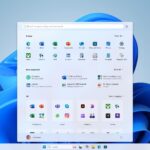
The first process  on how to get the Start menu icon is to sieve through the set of app icons, mostly showing Microsoft-related apps pinned to the main page. You should then Click on “All apps” on the top right corner, just below the search field), showing you the familiar A-to-Z listing of apps, with no tiles.

You should now scroll below app icons, and there you’ll find  “Recommended”, a section, that shows apps Microsoft suggests you should try (such as Teams) and, by clicking  on the “More” button, showing some of the files or apps you may have used recently.

Clicking on the search field offers immediate access to several popular apps.

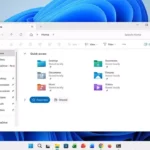
You then click on the search field, with this offering you immediate access to File Explorer, settings, and other apps.

You can move the Start icon to the left using the taskbar alignment option in your setup menu.

The next step is you moving the centred apps to the left of the taskbar. You do this by Right-clicking on the taskbar. Once you do this, you will see ‘Taskbar settings’ click on it.

After clicking on the Taskbar settings, select ‘Taskbar behaviours’. After doing this, you will see ‘Taskbar alignment’, click on button on the right where it says “Centre.” Select “Left” instead.

Once you have selected ‘left’, close the settings window and voila! You will see that the app icons in the taskbar have moved to the left, with the Start menu icon in the corner.

Now the Start menu icon is in the left corner, but the menu itself is unchanged.


Source: The Verge

Related Posts:

  • Media
    Microsoft Reveals Rejected Start Menu Redesigns
  • get-latest-updates-toggle
    Ads Could Be Coming To Windows 11 Shortly
  • iOS-Blog-Post-Image
    Microsoft; Windows 11 Start Menu Gets iPhone Feature
  • 1604217-microsoft
    Windows 11 Gets Faster, Cleaner File Explorer in New Update
  • google cookies
    Google Fixes Quick Share Crashes, WiFi Issues on Windows
  • Five Easy Methods To Change Your Username On Windows 11
    Five Easy Methods To Change Your Username On Windows 11
  • Parallels-Desktop-20-for-Mac_Writing-Tools-Apple-Intelligence-on-Windows
    Parallels Desktop Now Supports Windows and Apple's…
  • 8b89eea1-3b57-46e7-a582-a929dc70c3da
    Microsoft Requirements On How To Upgrade Windows 8.1…

Discover more from TechBooky

Subscribe to get the latest posts sent to your email.

Tags: software updatetipswindows 10windows 11
Ayoola

Ayoola

Ayoola Faseyi, an Abuja based Journalist with interest in Technology and Politics. He is a versatile writer with articles in many renowned News Journals.He is the Co-Founder of media brand, The Vent Republic.

BROWSE BY CATEGORIES

Receive top tech news directly in your inbox

subscription from
Loading

Freshly Squeezed

  • Microsoft To Turn Off NTLM By Default In Future Windows February 1, 2026
  • Free YouTube Background Play: Google Confirms Crackdown February 1, 2026
  • Google Dismantles Secret Network Hijacking Phone Data February 1, 2026
  • NCC Data Shows Average Download Speeds Hit 20.5 Mbps in Q4 2025 February 1, 2026
  • U.S. Probes Claim Meta Can Read Encrypted WhatsApp Chats February 1, 2026
  • OpenClaw’s Viral Rise Exposes Security Risks in Agentic AI February 1, 2026
  • Nvidia CEO Reaffirms Commitment to OpenAI Amid Rumours February 1, 2026
  • AI Chatbots Increasingly Cite Musk’s Grokipedia Despite Concerns February 1, 2026
  • Samsung Galaxy Z TriFold Sells Out as Google Teases Unified OS January 31, 2026
  • SendBaba Launches AI-Powered Email Marketing Platform in Nigeria January 31, 2026
  • PVH Corp Integrates ChatGPT to Transform Fashion Operations January 31, 2026
  • Google Study Finds Internal Debate Boosts AI Reasoning January 31, 2026

Browse Archives

February 2026
MTWTFSS
 1
2345678
9101112131415
16171819202122
232425262728 
« Jan    

Quick Links

  • About TechBooky
  • Advertise Here
  • Contact us
  • Submit Article
  • Privacy Policy
Generic selectors
Exact matches only
Search in title
Search in content
Post Type Selectors
Search in posts
Search in pages
  • African
  • Artificial Intelligence
  • Gadgets
  • Metaverse
  • Tips
  • AI Search
  • About TechBooky
  • Advertise Here
  • Submit Article
  • Contact us

© 2025 Designed By TechBooky Elite

Discover more from TechBooky

Subscribe now to keep reading and get access to the full archive.

Continue reading

We use cookies to ensure that we give you the best experience on our website. If you continue to use this site we will assume that you are happy with it.