Windows’ built-in tools present numerous ways to improve and maintain your system’s performance. Beyond these, there are additional strategies to ensure your system continues to operate efficiently. In this comprehensive guide, we’ll explore the top ten tips and tricks to optimize the performance of your Windows PC.
1. Clean up System Files: The Disk Cleanup utility in Windows includes a handy feature – “Clean up System Files”. This tool eliminates old and unnecessary system files to free up disk space. Here’s how you can use it:
– Simply locate the “Clean up System Files” option within Disk Cleanup.
– Choose the drive you wish to sanitize and pick the files and folders you want to delete.
– Once you’ve made your selection, press OK to delete these files and reclaim your disk space.
Source: tenforums
2. Use Disk Cleanup Utility: The Disk Cleanup utility, a standard feature in every Windows version, can analyze your disk space and clean out any unneeded files to recover more space. It gives a comprehensive analysis of the unnecessary files on your system before deletion. Here are instructions to access it:
– Navigate to the Start menu.
– Type “disk cleanup” in the search box, hit Enter, and select the Disk Cleanup utility from the displayed options.
– Choose the drive you want to clean.
– Under Disk Cleanup window, all junk files will be listed.
– Select any file you wish to delete then press OK.
Source: techrepublic
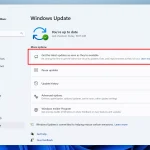
3. Keep Windows Updated: Typically, the Windows OS seeks out updates, then downloads and installs them automatically at regular intervals. However, you can manually check for updates at any time.
– Go to the Start menu, type “Windows update” in the search bar and choose it from the available options.
– Next, click the “Check for Updates” option. Windows will then search for the latest updates and display them in a new window, from where you can update your system.
Source: howtogeek
4. Update Your Drivers: The Device Manager on your Windows system assists in updating drivers. To use it, follow these steps:
– Go to the Start menu and search for “device manager”.
– In the Device Manager window, select and expand one of the categories to update its driver.
– Right-click on the item you selected and pick “Update driver software”.
– In the following window, “Search automatically for updated driver software” can automatically update driver software. Alternatively, there’s a second option that allows you to browse for driver locations on your PC to update it, “Browse my computer for driver software”.
Source: drivereasy
5. Manage Startup Programs: You can boost system efficiency by disabling the programs that run automatically at boot time.
– For Windows 7: Search for “msconfig” in the Start menu. In the “System Configuration” window, select the Startup tab to unveil all startup items on your system. Uncheck all programs you do not want to run during startup. Apply changes, press OK and reboot your system.
– For Windows 10: Right-click on the Taskbar and choose Task Manager. Click on “More Details” and find the Startup tab. To disable any program, simply right-click on it and select Disable. Confirm changes and reboot your system. This can help you boost your Windows 10 startup and shutdown speed.
6. Launch the Windows Troubleshooter: To launch the Windows Troubleshooter, type “troubleshooting” in the search bar and select the Top Result. Select the “System and Security” section and click on “Run maintenance tasks” for a detailed report of any potential issues and how to fix them.
7. Uninstall Unnecessary Programs: To maintain optimal performance, it is important to regularly uninstall programs that are no longer in use.
– In Windows 7: Start Menu > Control Panel > Programs & Features.
– In Windows 10: Open Start Menu > Settings > System > Apps & Features.
Select the program you wish to uninstall then press the Uninstall button.
Source: laptopmag
8. Launch Performance Monitor: The Performance Monitor provides a detailed report about system hardware and software processes and allows for effective management of your system.
– In Windows 7: To launch it, type “performance monitor” in the search box of the Start menu.
– In Windows 10: To access the Performance Monitor, type “perform /report” in the search bar.
Source: serverdensity
9. Use a Reputable Security Suite: Install a trustworthy anti-malware program in conjunction with a Firewall on your system to enhance security and ensure smoother system operation.
10. Leverage Technology: Leverage technology to improve your system performance. Various apps like disk analyzer tools, system security suites, driver updater tools, system optimizer software, or duplicate file remover tools can be of great use.
Whether you’re a novice or an advanced user, these proven and powerful steps can help you maintain and enhance your system’s performance. Happy computing!
This article was updated in 2025 to reflect modern realities.
Related Reading
More contextual TechBooky stories selected from tags, categories and article context.
We use cookies to ensure that we give you the best experience on our website. If you continue to use this site we will assume that you are happy with it.