TechBooky AI Assistant
👋 Welcome to TechBooky AI Assistant

I can help with:
🔎 Tech News
🤖 AI Topics
💻 Gadgets
☁️ Cloud
✍️ Guest Posts
📢 Advertising
🔗 Backlinks
📩 Newsletter
  • AI Search
  • Cryptocurrency
  • Earnings
  • Enterprise
  • About TechBooky
  • Submit Article
  • Advertise With TechBooky
  • Contact Us
TechBooky
  • African
  • AI
  • Metaverse
  • Gadgets
Generic selectors
Exact matches only
Search in title
Search in content
Post Type Selectors
Search in posts
Search in pages
  • African
  • AI
  • Metaverse
  • Gadgets
Generic selectors
Exact matches only
Search in title
Search in content
Post Type Selectors
Search in posts
Search in pages
TechBooky
Generic selectors
Exact matches only
Search in title
Search in content
Post Type Selectors
Search in posts
Search in pages
Home Research/How to do it

Microsoft Requirements On How To Upgrade Windows 8.1 To Windows 10

Upgrade Windows 8.1 to Windows 10

Emeka Eni by Emeka Eni
September 10, 2023
in Research/How to do it, Software, Tips
Share on FacebookShare on Twitter
Share this story

Send it to someone who should read it.

f Facebook X X in LinkedIn wa WhatsApp tg Telegram @ Email
In Brief
  • Microsoft reported to end supporting the ancestral OS which denotes a mandate for Windows users running tasks on the eighth edition of the flagship OS system...
  • It is very possible to upgrade the computer from Windows 8.1 to Windows 10 without losing any files — that is how seamlessly and easily Microsoft...
  • The in-app Media Creation Tool allows users to bid for the computer system upgrade meeting up with the Microsoft hardware requirements to balance the OS system...

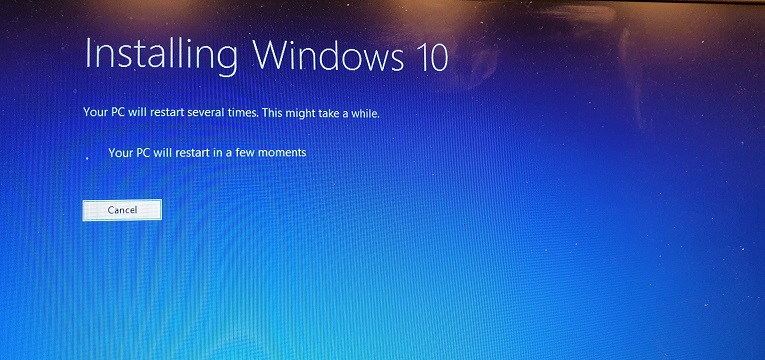
Microsoft reported to end supporting the ancestral OS which denotes a mandate for Windows users running tasks on the eighth edition of the flagship OS system should bid for an upgrade to the next available OS system such as Windows 10 most preferably. It is very possible to upgrade the computer from Windows 8.1 to Windows 10 without losing any files — that is how seamlessly and easily Microsoft insiders developed the software.

The in-app Media Creation Tool allows users to bid for the computer system upgrade meeting up with the Microsoft hardware requirements to balance the OS system condition after installation. Before proceeding with the upgrade sequence, it is optimal to uninstall third-party security software systems such as antivirus software and old third-party security apps that are likely to obstruct the Windows system upgrade.

Uninstalling third-party software/apps isn’t the only peripheral to look out for — disconnect other hardware including printer, phone, camera, external hard drive, and other USB devices to process a smooth software upgrade. These are minor factors that hinder a smooth Windows software upgrade. However, Microsoft built the Windows 7 & Windows 8.1 software with the System Image Backup tool to create a backup of the computer files.


Hardware Requirements

Before we dive down to the steps TechBooky has drafted to tutor a Windows system upgrade, let’s glance through the hardware requirements mandatory by Microsoft to install Windows 10. However, the hardware must meet the minimum system requirements, including;

  • Processor: 1GHz or faster processor or SoC.
  • RAM: 1GB for 32-bit or 2GB for 64-bit.
  • Hard disk space: 16 GB for 32-bit OS and 20GB for 64-bit OS.
  • Graphics Card: DirectX 9 or later with WDDM 1.0 driver.
  • Display: 1024×600.

It is worth noting that Microsoft has reportedly ended its support for downloading free Windows 10 OS which denotes that accessing the product key will be a slight hiccup. It’s possible to activate the tenth edition of Microsoft’s operating system with a Windows 8.1 product key — click here to access a product key.


Upgrade Windows 8.1 to Windows 10

TechBooky has drafted steps for Windows 8.1 users to follow in upgrading their hardware to either Windows 10 or the latest Windows OS system. It is optimal to create a complete backup to pick up where a crashed upgrade system left off — follow these steps to ditch the Windows 8.1 OS.

  • Launch the web browser and open the Microsoft website.
  • Observe the contents on the screen, under the Create Windows 10 installation media section, and click the Download Now button.
  • To launch the Windows 10 set-up wizard, double-click the MediaCreationTool21H2.exe.
  • Observe the licensing agreement before clicking the Accept button.
  • Click and select the Upgrade this PC now option.
  • Click the Next button.
  • Select the Keep personal files and apps option. The Windows system can alternatively allow users to click the Change What to Keep option to upgrade without preserving their files and software.
  • Then click the Install button.

Why You Should Upgrade to Windows 10

  1. Security updates stop—running an unsupported OS exposes you to unpatched vulnerabilities.

  2. Application compatibility—new apps and features increasingly require Windows 10 or later.

  3. Microsoft 365 Apps support—no longer supported on Windows 8.1 as of January 10, 2023 Microsoft Learn.

Preparing for the Upgrade

  • Back up your data.

    • Use System Image Backup or File History (Settings → Update & Security → Backup) to create a full copy of your files.

      Also worth reading
      Microsoft Cloud Growth Jumps As Azure Gives AI Spending A Better Answer Microsoft Launches MAI-Cyber-1-Flash As AI Security Becomes A Model Race Microsoft And Mistral Sign Multibillion-Dollar European AI Deal AMD Lands Microsoft As Helios AI Rack Customer In Nvidia Challenge Microsoft Is Becoming an AI Company and Xbox Is Paying the Price Nvidia-Powered Windows PCs Debut as Microsoft Bets on Local AI Computing
  • Uninstall third-party security software.

    • Temporarily remove antivirus, VPN clients, and other system-level utilities to prevent conflicts during the upgrade.

  • Disconnect peripherals.

    • Unplug printers, scanners, external drives, cameras, and extra USB devices—only keep your keyboard, mouse, and network adapter connected.

Using the Media Creation Tool

  1. Download the Windows 10 Media Creation Tool from Microsoft’s download page (“Create installation media for Windows”).

  2. Run MediaCreationTool.exe and choose “Upgrade this PC now.”

  3. Follow the prompts—the tool will download the Windows 10 files and perform an in-place upgrade, preserving your apps, settings, and files.

Minimum Windows 10 System Requirements

  • Processor: 1 GHz or faster (x86-64 CPUs must support PAE, NX, and SSE2)

  • RAM: 1 GB for 32-bit or 2 GB for 64-bit

  • Disk Space: 32 GB

  • Graphics: DirectX 9 device with WDDM 1.0 driver

  • Display: 800 × 600 pixels

After the Upgrade

  • Reinstall your security software.

  • Reconnect peripherals.

  • Run Windows Update to ensure you have the latest drivers and patches.

By following these steps, you can seamlessly move from an unsupported Windows 8.1 installation to a fully supported Windows 10 environment—without losing your files or settings.

Related Reading

More contextual TechBooky stories selected from tags, categories and article context.

  • microsoft-365-app-icon-1
    M365 Apps on Windows 10 to Receive Security Updates…
  • windows-11-surpasses-one-billion-users-despite-mix
    Windows 11 Surpasses One Billion Users Despite Mixed…
  • l28420241204183946
    Microsoft Ends Supports For Outdated Hardware With…
  • m365app
    Microsoft Office Apps for Windows End Support October 14
  • maxresdefault (1)
    How to Upgrade to Windows 11 for Free As Windows 10…
  • get-latest-updates-toggle
    Ads Could Be Coming To Windows 11 Shortly
  • windows-update-close
    Microsoft Releases Emergency Patch For Windows Update Bug
  • powershell-1024x683
    Microsoft Drops PowerShell 2.0 from Windows 11 & Server
Keep Reading Smarter

Search TechBooky with AI

Use TechBooky's AI Search to explore the context behind this story and related coverage across the site.

Try AI Search
More On This Topic
Research/How to do it Software Tips
Follow TechBooky

Follow TechBooky for more technology stories and newsroom updates.

f Facebook X X in LinkedIn ig Instagram wa WhatsApp

Tags: microsoftOSwindowswindows 10Windows 8
Emeka Eni

Emeka Eni

I am a tech enthusiast, creating contents, graphic designer and am Africa.

Search TechBooky
Open TechBooky AI Search Try the AI Assistant

BROWSE BY CATEGORIES

Receive top tech news directly in your inbox

subscription from
Loading

Freshly Squeezed

  • Siri AI Paywall Would Make Apple Intelligence A Services Business July 31, 2026
  • Mirage Kitten Malware Shows Cyber-Espionage Pressure Across Africa And MEA July 31, 2026
  • Snapchat Stops Paying Fully AI-Generated Spotlight Videos As AI Slop Spreads July 31, 2026
  • Anthropic Says Claude Models Breached Real Systems During Cyber Tests July 31, 2026
  • DeepSeek V4 Flash API Raises The Pressure In The AI Agent Price War July 31, 2026
  • MTN Nigeria Fintech Revenue Slump Shows Airtime Lending Risk July 31, 2026
  • Google Earth AI Image Tool Shows How Fake Satellite Proof Could Spread July 31, 2026
  • Lesotho Launches National CSIRT As Cybersecurity Becomes Core Digital Infrastructure July 31, 2026
  • Gabon Data Centre Push Shows Africa Digital Sovereignty Is Becoming Infrastructure July 31, 2026
  • Inforcer Raises $50M As AI Turns Microsoft 365 Security Into An MSP Problem July 31, 2026
  • Rwanda 3G Shutdown Shows Africa Mobile Money Needs A Careful 4G Migration July 31, 2026
  • Amazon Leo Wants 5,105 Satellites To Take Phone Coverage Beyond Cell Towers July 31, 2026

Browse Archives

August 2026
M T W T F S S
 12
3456789
10111213141516
17181920212223
24252627282930
31  
« Jul    

Quick Links

  • About TechBooky
  • Advertise With TechBooky
  • Contact us
  • Submit Article
  • Privacy Policy
Generic selectors
Exact matches only
Search in title
Search in content
Post Type Selectors
Search in posts
Search in pages
  • African
  • Artificial Intelligence
  • Gadgets
  • Metaverse
  • Tips
  • AI Search
  • About TechBooky
  • Advertise With TechBooky
  • Submit Article
  • Contact us

© 2025 Designed By TechBooky Elite

Discover more from TechBooky

Subscribe now to keep reading and get access to the full archive.

Continue reading

We use cookies to ensure that we give you the best experience on our website. If you continue to use this site we will assume that you are happy with it.