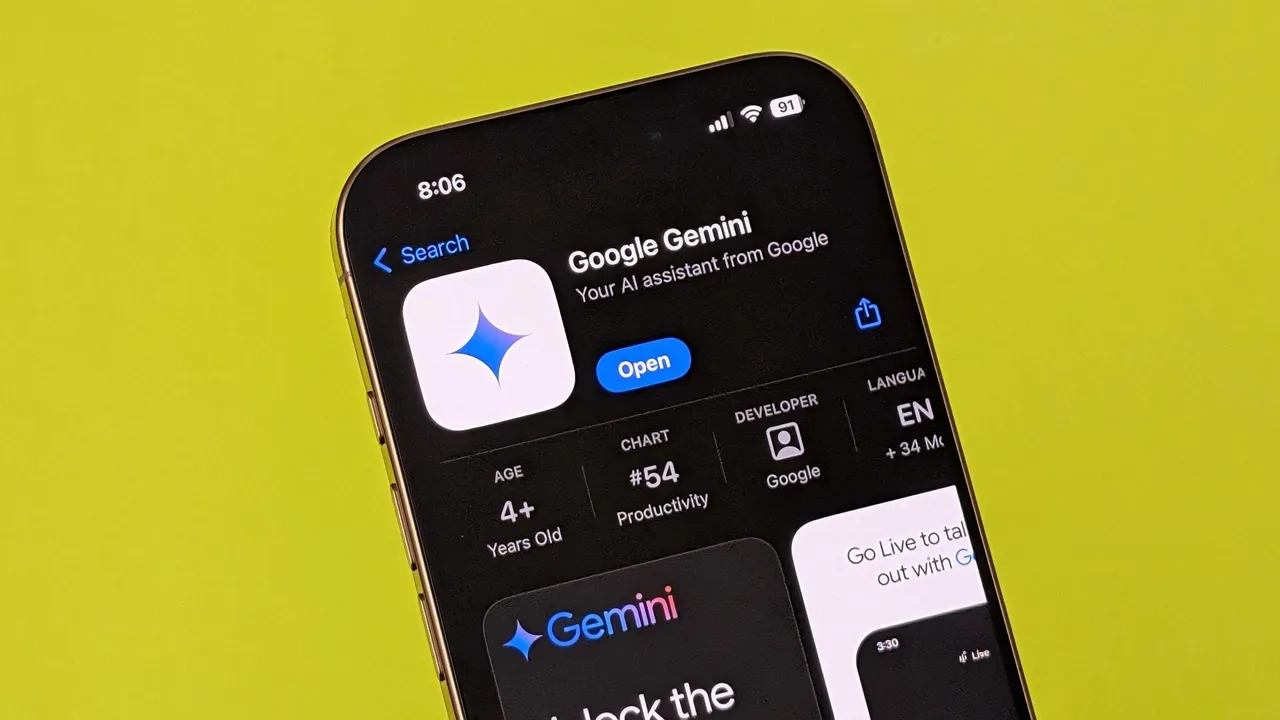
Google has spent the last few years weaving its Gemini AI into almost every corner of Workspace from Gmail’s AI inbox to a chat sidebar in Chrome, and suggestions across Docs, Sheets and more. If you find those prompts more distracting than helpful, there are a few levers you can pull to reduce or remove Gemini in your personal Google account.
Based on Google’s current setup, the controls you need are split into two groups of “smart features.” Managing them is easiest from Gmail on the web, and what you change there affects Gmail, Chat, Meet and other Workspace tools.
Turning off Gemini and other smart features in Gmail
To start limiting Gemini and related AI features in a personal Google Workspace account, you’ll be working inside Gmail’s settings:
Open Gmail in a desktop browser and click the cog (Settings) icon.
Select See all settings.
In the General tab, scroll down to the Smart features section.
Here you’ll find options that control smart features across Gmail, Chat and Meet.
In some regions specifically Japan, Switzerland, the United Kingdom and countries in the European Economic Area — these smart features are off by default. Elsewhere, you’ll likely find them enabled.
Under Smart features, you can disable the shared AI-powered options entirely. In addition, there’s a link labelled Manage Workspace smart feature settings. Clicking this opens another layer of controls:
Toggle off smart features in Google Workspace.
Toggle off Smart features in other Google products.
Those switches are what strip Gemini deeper out of Workspace products. However, they come with trade-offs that go beyond Gemini itself.
Caution
Turning off smart features in Google Workspace doesn’t just remove Gemini integrations. It also disables long-standing tools that many people treat as basic productivity features. With Workspace smart features fully off:
Spelling and grammar corrections are disabled.
Other long-time “smart” conveniences in Gmail and related apps stop working.
Gmail will no longer auto-categorize and prioritize incoming emails; the app will show a notification explaining that smart features are required for inbox categorization.
This bundling means that opting out of Gemini can feel like opting out of modern Gmail entirely, a design choice that makes users think twice about turning off AI-driven capabilities.
If you don’t want Gemini but still value some automation, you don’t have to nuke everything. You can keep the main smart features switch on and selectively disable specific options instead.
Granular control: which Gmail features you can keep or kill
Within Gmail’s General tab, the Smart features section also lists individual tools you can turn on or off without disabling the whole stack. These include:
Smart Compose – As you write an email, Gmail suggests the next few words or phrases.
Smart Compose personalization – Adjusts Smart Compose suggestions to better match your writing style over time.
Nudges – Prompts you to reply to or follow up on messages that appear to have been missed.
Smart Reply – Offers short, auto-generated replies you can send with a click.
Package tracking – Shows shipping and delivery updates directly in Gmail.
Desktop notifications – Enables notifications on your computer using Google’s smart systems.
You can disable any of these if they feel intrusive, while leaving others active. For many users who just want less Gemini in their face, this middle-ground approach leaving core smart features on but trimming auto-writing and auto-reply tools may be more practical than shutting everything down.
Limits: where you can’t fully remove Gemini yourself
Even after you’ve toggled off smart features in Gmail and adjusted Workspace-level settings, Gemini does not completely disappear across all Google apps.
There are two major constraints:
Docs, Sheets and more still show Gemini: Disabling smart features in Google Workspace doesn’t eliminate Gemini presence in apps such as Docs or Sheets. You may still see Gemini-related options or prompts in those interfaces.
Calendar behavior can change: If you turn off Gemini in Docs, for example, Calendar may stop automatically displaying events it would usually pull in from Gmail. That’s another instance where disabling AI ties your hands on long-standing automation.
For personal Google accounts, that means you can mostly dial down Gemini and related smart features in Gmail, Chat and Meet, but you can’t entirely scrub Gemini branding or functionality out of every Workspace surface on your own.
If you’re using a work or school account provided through an organization’s Google Workspace domain, the picture is slightly different. The same toggles described above should appear in Gmail’s settings, and you can use them to turn off many of the smart features you see day to day. But when it comes to completely shutting off Gemini across Docs, Sheets and other Workspace apps, only your Workspace administrator has that level of control. Any Gemini components that are centrally enabled by IT will remain available to you until they switch them off.
In short, Google’s current design makes it easy to turn Gemini on, harder to turn it off without losing other abilities, and nearly impossible to remove it entirely from all Workspace apps unless an administrator steps in.
Related Reading
More contextual TechBooky stories selected from tags, categories and article context.
Paul Balo is the founder of TechBooky and a highly skilled wireless communications professional with a strong background in cloud computing, offering extensive experience in designing, implementing, and managing wireless communication systems.
We use cookies to ensure that we give you the best experience on our website. If you continue to use this site we will assume that you are happy with it.