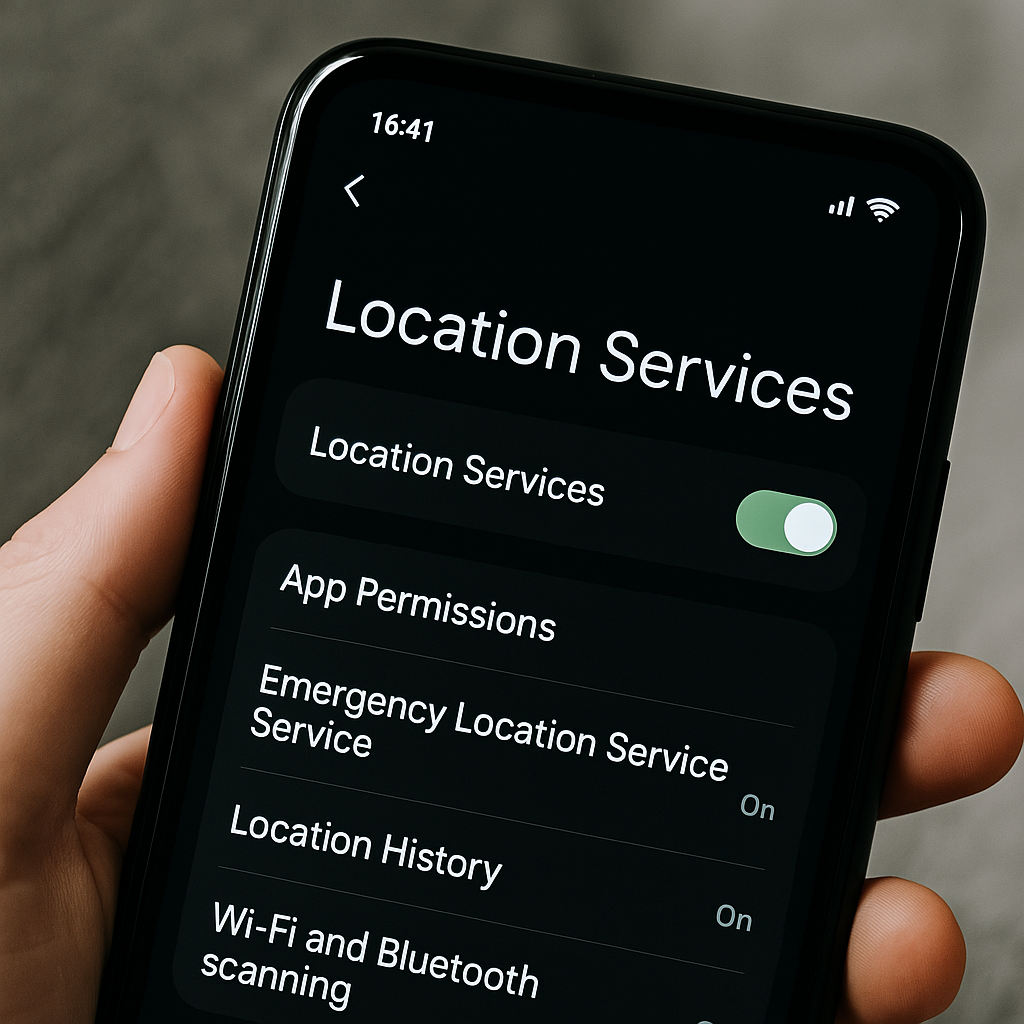
Your smartphone’s GPS and location services can be a sneaky battery drain, especially if left broadly enabled for many apps or system processes. When every other app is tracking your location or the system is constantly scanning for Wi-Fi and Bluetooth devices to pinpoint you, your battery can take a hit. Kaplan warns that location services will “constantly try to connect to the satellite in order to accurately tell the user’s location through GPS,” which can drain a lot of battery. Aside from GPS itself, both Android and iOS perform Wi-Fi and Bluetooth scanning in the background (even when those radios are “off”) to assist with location accuracy – another unseen battery sucker.
Why it drains battery: Precise location tracking uses power-hungry components: the GPS receiver, Wi-Fi chipset, Bluetooth radio, etc. When location access is set to “Always” for an app, that app can wake the device to get location updates regularly, preventing deep sleep. Moreover, on Android, features called Wi-Fi scanning and Bluetooth scanning will intermittently power up those radios to look for signals (to improve location accuracy by seeing nearby Wi-Fi networks or beacons). This process keeps the CPU awake and active, which one Android enthusiast notes “prevents [the] device from going/staying in deep sleep mode” and drains the battery more than expected. In short, location is essential for maps and some services, but many apps requesting it in the background can lead to significant power draw.
How to limit location-related drains:
Review app permissions (iOS & Android): Both systems let you choose when each app can use your location. Go to your Settings > Privacy > Location Services (iOS) or Settings > Location > App permissions (Android). Set as many apps as possible to “While Using” (iOS) or “Allow only while app is in use” (Android) instead of “Always.” For example, your weather or ride-share app doesn’t need your GPS all day – only when you open it. You can even set some to “Never” if you think they shouldn’t access location at all . This stops constant background location pings.
Disable system location scanning (Android): On Android, go to Settings > Location > Wi-Fi scanning and Bluetooth scanning, and turn these off if you don’t need your phone always searching for networks to improve location accuracy. These features are meant to help detect your location by nearby Wi-Fi/Bluetooth even when you’ve turned Wi-Fi/Bluetooth off, but they “do nothing except kill your battery” according to some users. Simply toggling them off can yield “MASSIVE battery life gains” in standby time for some devices. FYI, You can still get location via GPS/cellular without them.
Turn off unnecessary system services (iOS): On iPhone, go to Settings > Privacy & Security > Location Services > System Services. Here you’ll find various Apple system functions that use location, like Networking & Wireless, Frequent Locations, and Product Improvement analytics. Consider turning off ones that aren’t important to you. For instance, Product Improvement (which sends analytics about your usage) can be safely turned off – Apple even admits you’re “not obligated” to provide this data, and shutting it down can save battery. Also, if you don’t use features like location-based reminders or ads, those can be toggled off too.
Use battery-saving location mode (Android): On some Android devices, you can choose the location mode. Modes like “Battery Saving” (which use Wi-Fi/Cell towers but not GPS) use less power than “High Accuracy” (which uses GPS alongside Wi-Fi/Cell). If you’re not using turn-by-turn navigation, the battery saving mode might be sufficient and will avoid constantly firing up the GPS chip.
After making these tweaks, your GPS will still be available when you need it (for maps, etc.), but you’ll prevent dozens of unnecessary location checks when you don’t need it. You might not notice any difference in app functionality for most apps – but you will notice a longer-lasting battery. As a bonus, limiting location access also improves privacy.
6. “Hey Siri”/“Hey Google” Always Listening
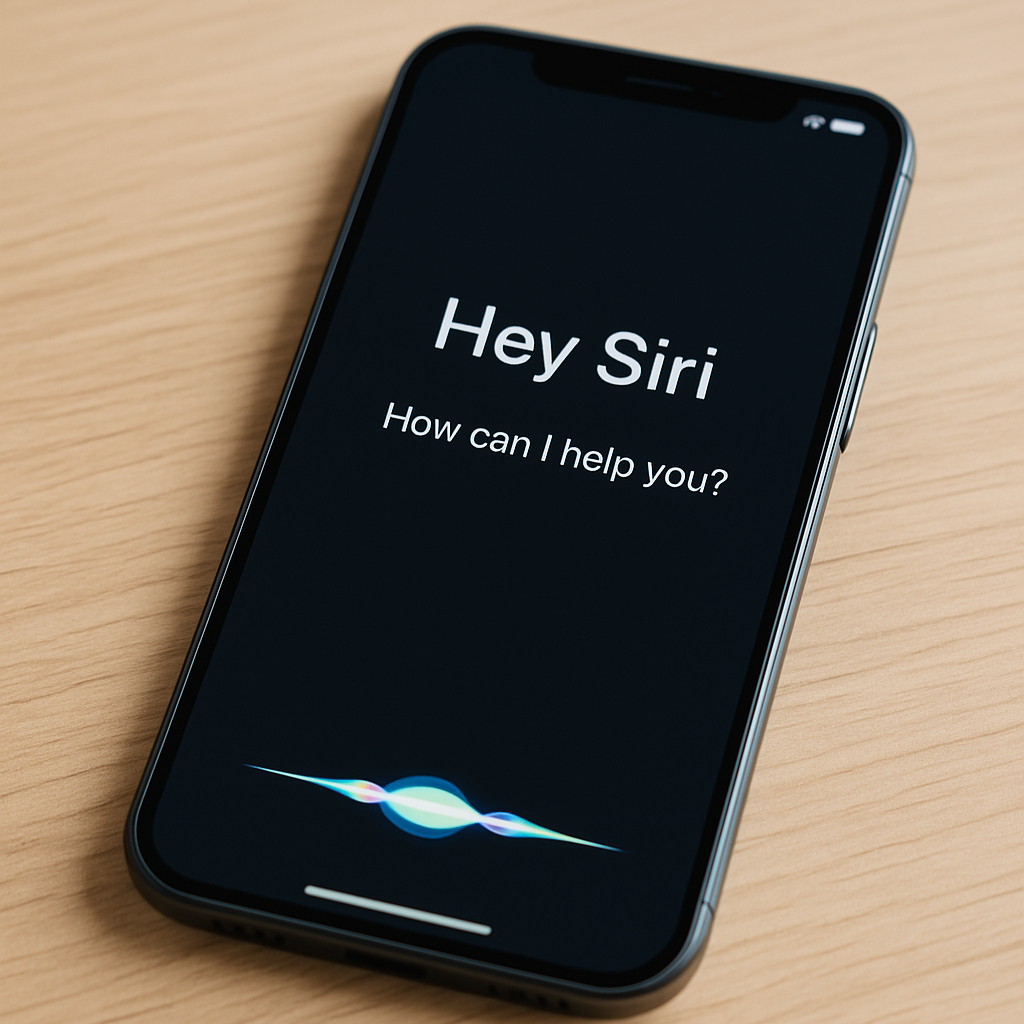
Voice assistants are incredibly handy – just say “Hey Siri” or “OK Google” and your phone awaits your command. However, that convenience of an always-listening voice assistant comes with an energy cost: your microphone (and a chunk of the AI software) is constantly active in the background, listening for the wake word. If you’re not a heavy user of voice commands, this is one hidden setting worth turning off to save power. As ZDNet puts it, if your phone is “constantly listening” for the trigger phrase, “chances are your battery is draining away”. It takes a fair amount of processing for the device to continually analyse ambient audio for the keywords, and doing that 24/7 inevitably saps battery life.
Why it drains battery: The continuous listening keeps parts of the chipset (like the DSP or microphone input circuit) active. Although modern phones use low-power cores for this, over an entire day the power spent on waiting for a voice command adds up. The impact might be a few percent of battery each day just for the possibility that you might say “Hey Google/Siri.” Additionally, any false triggers or accidental activations (when the assistant thinks it heard the wake word) can ramp up power usage as the phone starts processing a request or lighting up the screen.
How to disable the always-listening feature:
On iPhone: Go to Settings > Siri & Search and toggle off “Listen for ‘Hey Siri’.” After this, Siri will no longer wake up from the voice command – you can still activate Siri by pressing the side/power button when you need it. This way, the microphone isn’t continually monitoring for the phrase. (On iOS 17 and later, Apple changed the command to just “Siri” instead of “Hey Siri,” but the same toggle controls the always-listening function.)
On Android: The exact path can vary, but generally open the Google app, tap your profile picture> Settings > Google Assistant. Then go to “Hey Google & Voice Match.” Turn off the “Hey Google” detection. On many phones, you can also long-press the Home button or say a different custom hotword via assistant apps, but the key is that the phone won’t be actively listening for “OK/Hey Google” anymore. Samsung users: if you have Bixby voice wake-up enabled (“Hi, Bixby”), you’d disable that in Bixby settings similarly.
After turning this off, you might miss the convenience of hands-free queries, but you’ll likely gain some battery life. If you rarely use the assistant, it’s a “no-brainer” to disable this feature. And remember, you can always re-enable voice activation later or use manual activation when you need your digital assistant. In the meantime, your phone will enjoy a bit more rest (and battery savings) when it’s sitting idle.
Please continue to the Next Page
Related Reading
More contextual TechBooky stories selected from tags, categories and article context.
Paul Femi Balo is the founder and publisher of TechBooky. He covers artificial intelligence, African technology, digital infrastructure, enterprise technology and the global digital economy.
We use cookies to ensure that we give you the best experience on our website. If you continue to use this site we will assume that you are happy with it.