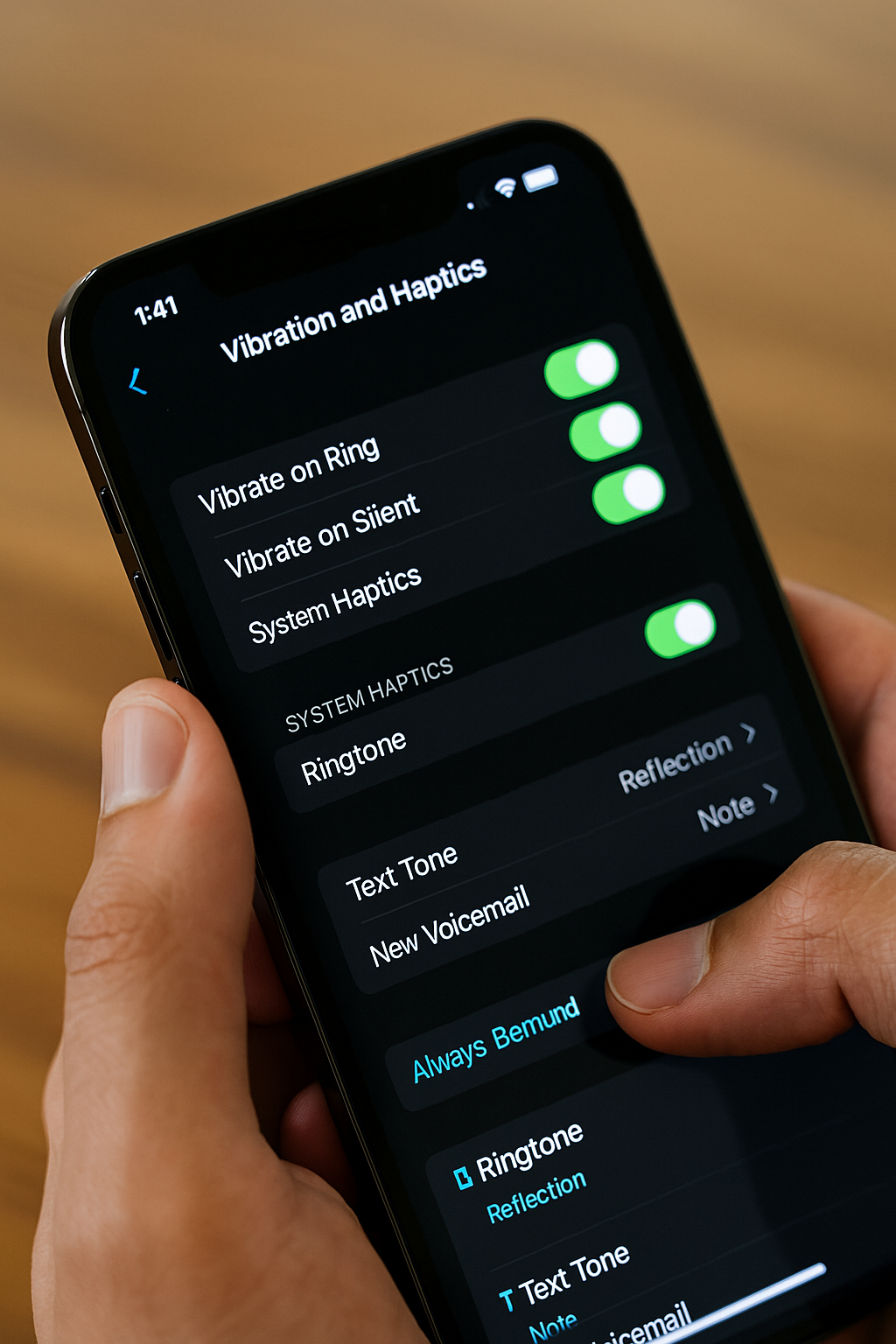
Your smartphone doesn’t just light up and make sounds – it also often vibrates to get your attention or provide feedback (like the little bump you feel when typing on the keyboard). These haptic vibrations are produced by a small motor inside the phone, and like any motor, it uses power. If your phone is set to vibrate for every call, text, email, and keypress, those tiny power draws can add up over the day. In fact, having keyboard haptic feedback on – where the phone buzzes with each key tap – can noticeably affect battery life. Apple even quietly notes in a support document that “keyboard haptics might affect the battery life of your iPhone.” In other words, all those little vibrations while you type or navigate are not free – they drain the battery bit by bit.
Why it drains battery: Vibration requires a physical motor (often an eccentric rotating mass or linear actuator) to move and create the buzz. Spinning that motor uses more energy than just playing a simple sound. So, if your phone vibrates 100 times a day (for notifications or touches), it’s using energy each time. Haptic feedback for typing is especially intensive: imagine typing a lengthy message and the phone buzzing for each character – that could be hundreds of tiny motor activations in a short span. As ZDNet highlights, with both sound and haptics enabled for the keyboard, “your battery may suffer because your phone needs to make a series of vibrations and noises every time you tap a letter”. It’s a small hit per tap, but multiplied by the number of taps, it becomes significant. Additionally, constant vibration can prevent the phone from going into a very low-power state if it’s buzzing frequently (though brief, it’s a repeated interruption).
How to reduce battery drain from haptics:
Turn off keyboard haptic feedback: On iPhone, go to Settings > Sounds & Haptics > Keyboard Feedback and switch off “Haptic”. (Apple actually ships this off by default, partly due to the battery impact.) You can also turn off “Sound” here if you want silence, but sounds don’t consume as much power as vibrations. On Android, the path can vary by keyboard: if you use Gboard, open Settings > System > Languages & input > On-screen keyboard > Gboard > Preferences. There, disable “Haptic feedback on keypress” (and you can disable “Sound on keypress” too). This will stop the phone from buzzing with each keystroke, saving a surprising amount of energy over time.
Use vibrate mode sparingly: If your phone is on vibrate-only mode all day for notifications and calls, it’s expending more energy than if it were on a low-volume sound. Consider using sound or a lighter vibration pattern if possible. Alternatively, use Do Not Disturb when you can, to avoid excessive buzzes.
Disable unnecessary system haptics: Both iOS and Android have additional haptic feedback for system interactions (like locking the phone, or UI controls). On iPhone, in Settings > Sounds & Haptics, you can scroll down and turn off System Haptics entirely if you don’t care for any vibration feedback. On some Android phones, in Settings > Sound & vibration, you can find toggles for things like vibration on tap, or feedback for gestures – you can experiment with turning those off.
By cutting down vibrations, you’ll make your device a bit more battery-friendly. The phone will also feel calmer (not buzzing every other minute). You might particularly notice the difference if you do a lot of typing – the battery gauge will thank you at the end of the day. Remember, every little bit of saved power counts, and disabling haptics is an easy win that doesn’t break any functionality. If you do miss the tactile feel, you can keep some haptics on (maybe only for important things like phone calls or for a gentle tap when you use the navigation gestures) and turn others off. It’s about finding the right balance between a pleasing user experience and better battery longevity.
10. Automatic Updates and Data Analytics
Your smartphone is busy even when you’re not using it – updating apps, downloading system updates, and sending diagnostic data in the background. These automatic updates and analytics settings are meant to keep your device up-to-date and help improve services, but they can also drain battery in the background. For instance, if your phone decides to update a bunch of apps from the Play Store or App Store while on battery, it will use CPU, network, and disk – all battery-intensive tasks – without you realizing why your charge suddenly dropped. Similarly, both Apple and Google collect usage analytics and location data (with your permission) to “improve products and services.” While the data trickle might be small, it still uses some power and network. Disabling some of these automatic or always-on services can give you minor battery gains and ensure you control when big downloads happen.
Why it drains battery:Auto-App Updates: Downloading and installing app updates in the background consumes battery (and data). Usually, phones wait for Wi-Fi, but not necessarily for charging – unless configured, they might update anytime Wi-Fi is connected. If a big game or multiple apps update while you’re on the go, the battery can drain faster due to the active download and processing. System Updates Download: Similarly, downloading iOS or Android system updates uses power (though often these try to install when plugged in). Analytics & Diagnostics: On iPhones, settings like iPhone Analytics, Improve Siri & Dictation, or Improve Maps send data to Apple. On Android, Usage & diagnostics in Google settings sends periodic usage stats. While each transmission is small, they might prevent the phone from sleeping deeply if occurring regularly, and use a bit of cellular/Wi-Fi and CPU to package and send data. As one example, iPhone’s Product Improvement services (under System Services) use location and other info in the background – Apple is happy to collect it, but turning it off can slightly boost your battery by eliminating that background task.
How to take control:
Turn off automatic app updates: On Android, open the Play Store, go to the menu Settings > Network Preferences > Auto-update apps. Set it to “Don’t auto-update apps” (or at least “Over Wi-Fi only” if you want to save data but not necessarily battery). This way, app updates won’t install at random times on battery – you can update manually when convenient (preferably when charging). On iPhone, go to Settings > App Store and toggle off App Updates (and App Downloads if you want). Now apps will only update when you initiate it in the App Store. Remember to periodically update apps when you have a charger handy to keep security patches current.
Disable unnecessary analytics/sharing: On iPhone, go to Settings > Privacy & Security > Analytics & Improvements. You can turn off Share iPhone Analytics, Share iCloud Analytics, and related toggles. This stops the device from doing background uploads of usage data. Also, as mentioned earlier, under Privacy > Location Services > System Services, scroll and turn off any “Improve” or analytics-related services (like Improve Maps, Improve Siri, Routing & Traffic, etc.) that you don’t feel are useful to you. Apple uses those to crowdsource data, but you’ll save battery by opting out. On Android, in Settings > Google > Ads & Data (or search in Settings for “Usage & diagnostics”), find Usage & diagnostics and turn it off if you prefer not to send data to Google about device usage. Also, if your phone has manufacturer-specific analytics (e.g. Xiaomi User Experience Program, Samsung Send Diagnostics), those are usually in their account settings or additional settings – opt out to stop background telemetry.
Manage auto-downloads (media): If you use messaging apps that auto-download photos/videos (WhatsApp, Telegram, etc.), adjust those settings to not auto-download everything or only on Wi-Fi. Large media downloads triggered by chats can eat battery. This isn’t a system setting, but it’s part of stopping “automatic” stuff that drains power.
Please continue to the Next Page
Related Reading
More contextual TechBooky stories selected from tags, categories and article context.
Paul Femi Balo is the founder and publisher of TechBooky. He covers artificial intelligence, African technology, digital infrastructure, enterprise technology and the global digital economy.
We use cookies to ensure that we give you the best experience on our website. If you continue to use this site we will assume that you are happy with it.